
Getting started with BulkBurst Pro
Go from install to your first live promotion. Every step happens in your Shopify admin — no theme code.
Install and turn on the app embed
Lets the widgets appear on your storefront.
- Install BulkBurst Pro from the Shopify App Store. Setup opens automatically.
- Click Turn on app embed. The theme editor opens on App embeds.
- Switch on BulkBurst offers and click Save.
- Back in the app, click Check again on the Storefront widgets card — it turns green when the embed is on in your live theme.
Create a gift with purchase offer
Reward carts that reach a spend goal.
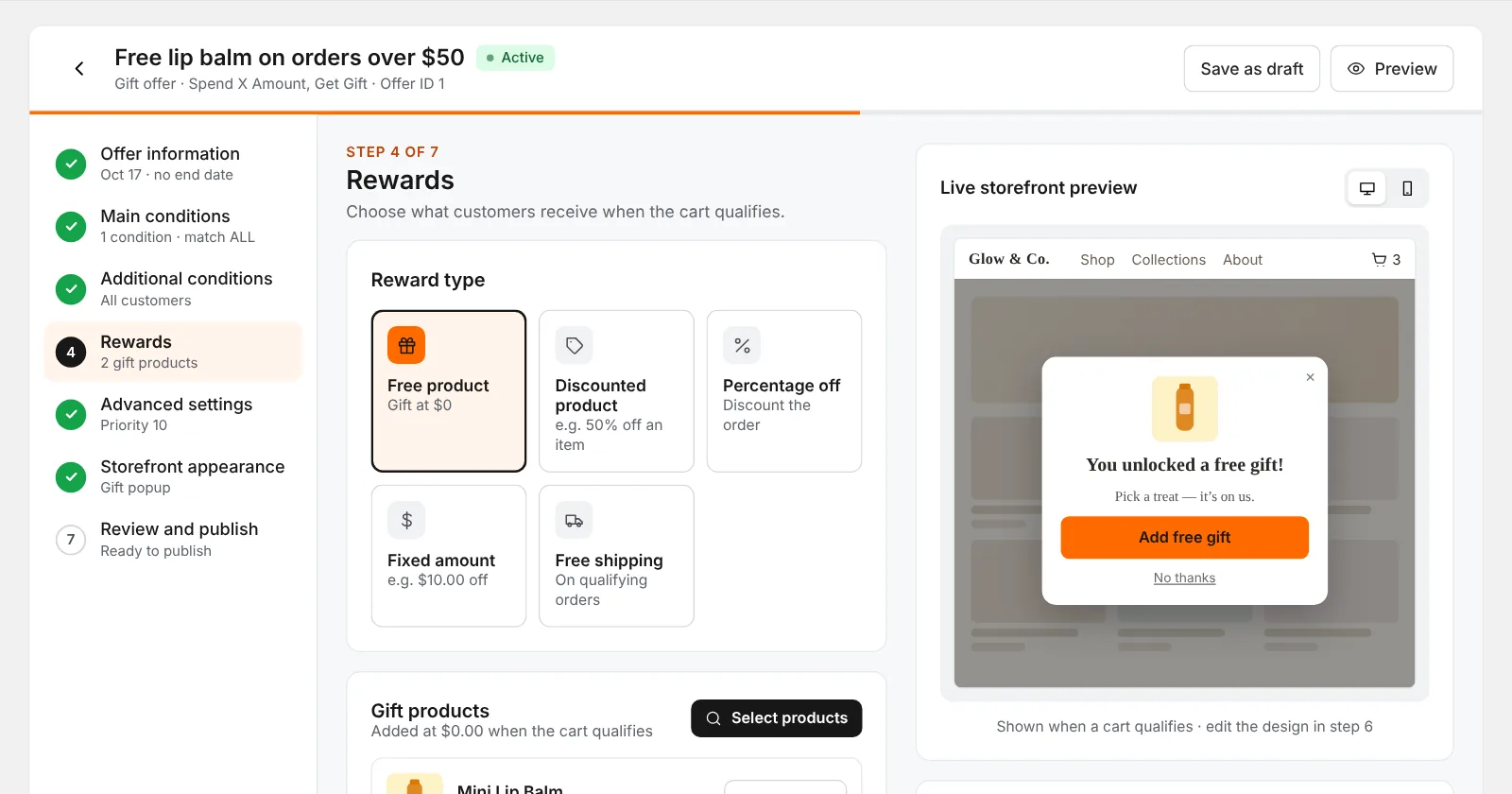
- Go to Create offer › Gift offers › Spend X Amount, Get Gift.
- Offer information: name the offer, write the title customers see at checkout and set the schedule.
- Main conditions: for example, “Minimum cart value is at least $50”.
- Rewards: choose the gift product(s), then whether the gift is added automatically or the customer picks it in a popup.
- Storefront appearance: style the popup — the preview updates as you type.
- Review and publish. BulkBurst creates the automatic discount that makes the gift $0 at checkout.
Sell a bundle
Products bought together, at a better price.
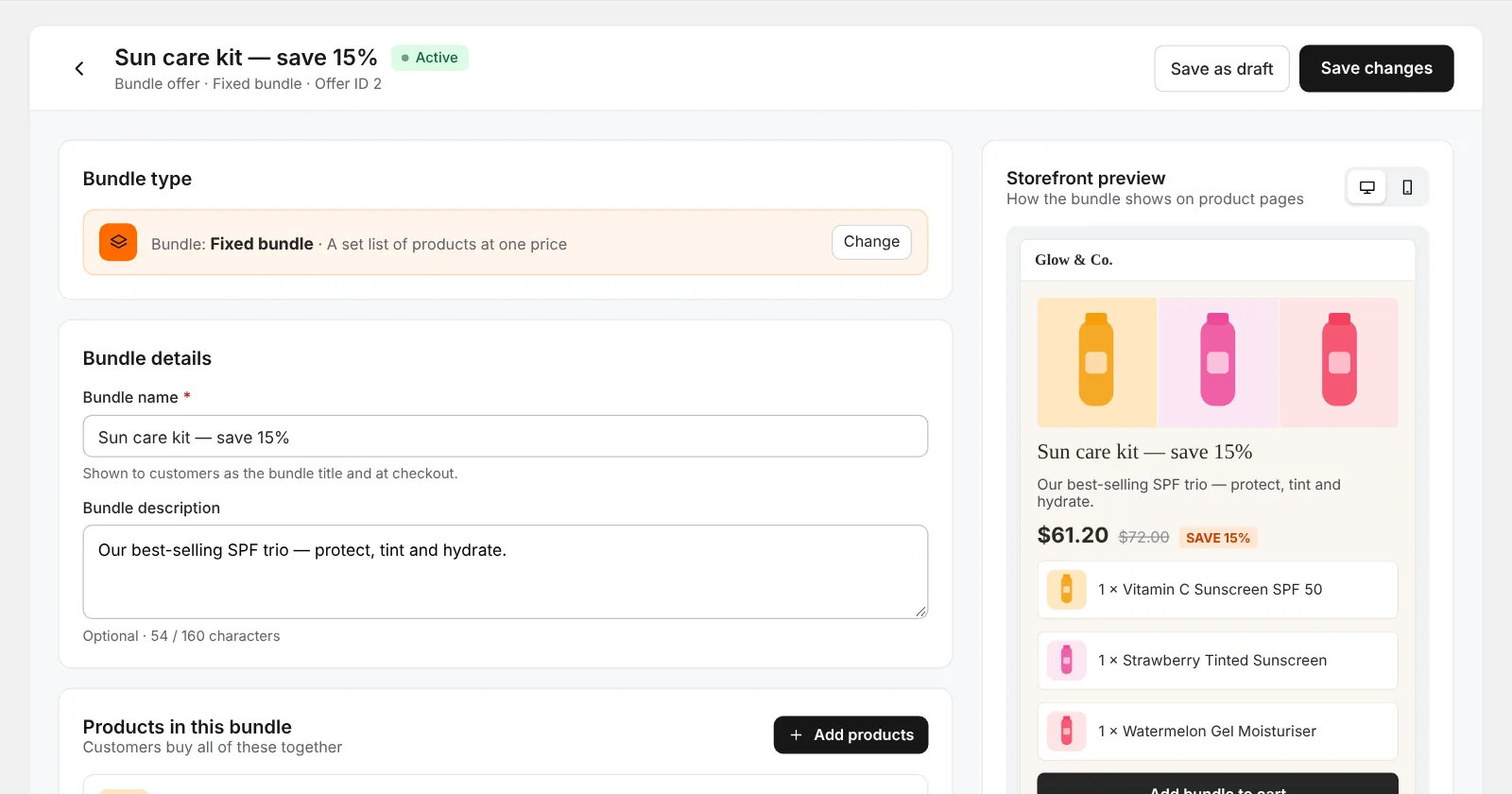
- Go to Create offer › Bundle offers and pick Fixed, Mix & match, Volume or Build your own.
- Add the products, and quantities for a fixed bundle.
- Set the price: a percentage off, an amount off or a set bundle price.
- Publish. The bundle shows on its products’ pages with an Add bundle to cart button.
Add a tiered or volume discount
Bigger savings as customers buy more.
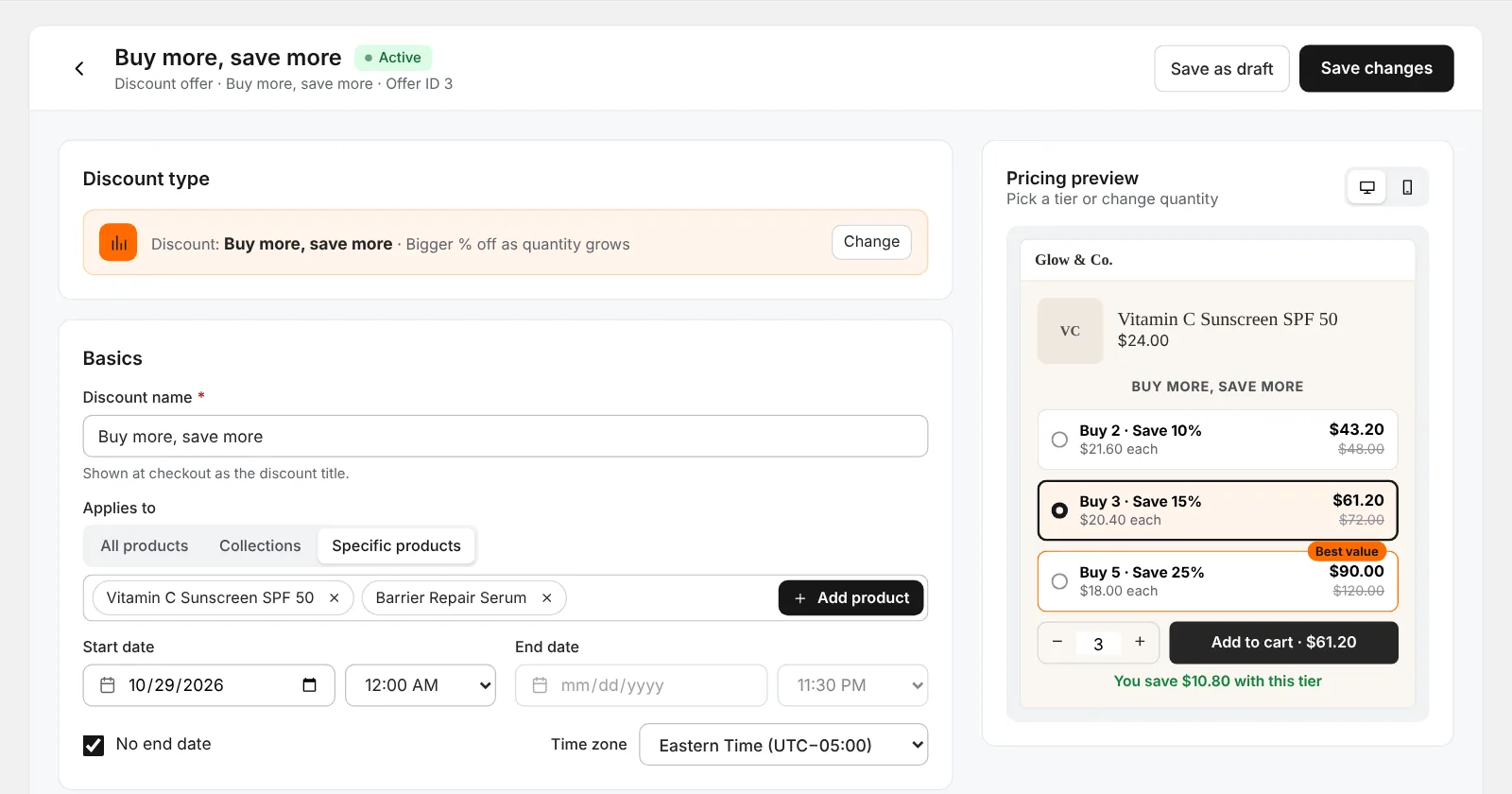
- Go to Create offer › Discount offers and pick Tiered, Quantity, Volume, Cart or Cheapest item.
- Choose what it applies to: all products, collections or specific products.
- Add tiers, e.g. buy 2 = 10% off, buy 3 = 15% off. Label a tier “Most popular” to highlight it.
- Publish. A tier table appears on eligible product pages and the best tier applies in the cart.
Recommend add-ons with upsells
Frequently bought together, product page and cart upsells.
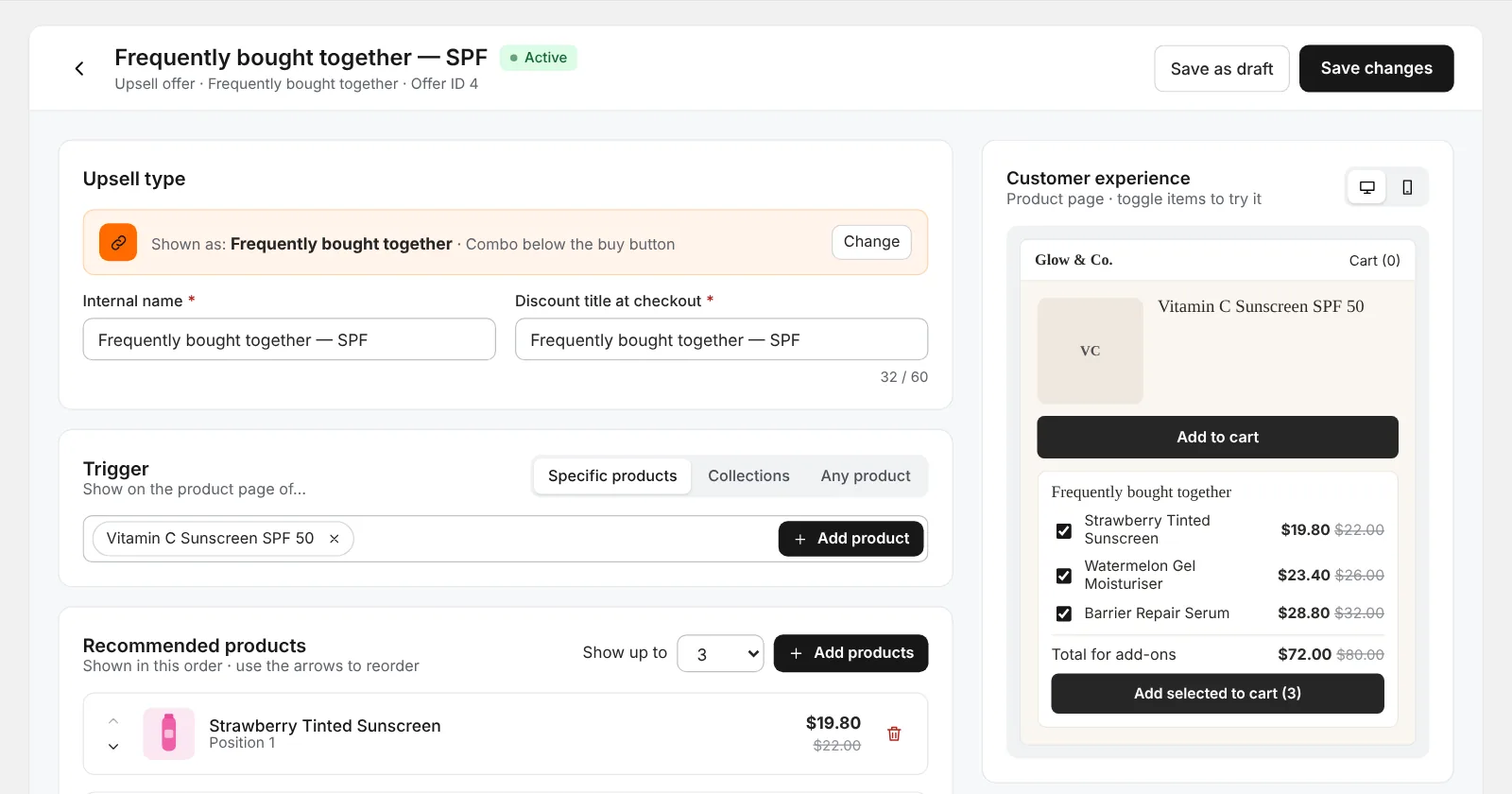
- Go to Create offer › Upsell offers and pick Frequently bought together, Product page upsell or Cart upsell.
- Choose the trigger (specific products, collections or any product) and the products to recommend.
- Optionally add a discount that applies while a trigger product is in the cart.
- Use the arrows to order recommendations. Sold-out products are skipped automatically.
Match the widgets to your brand
Colours, text and visibility for every widget.
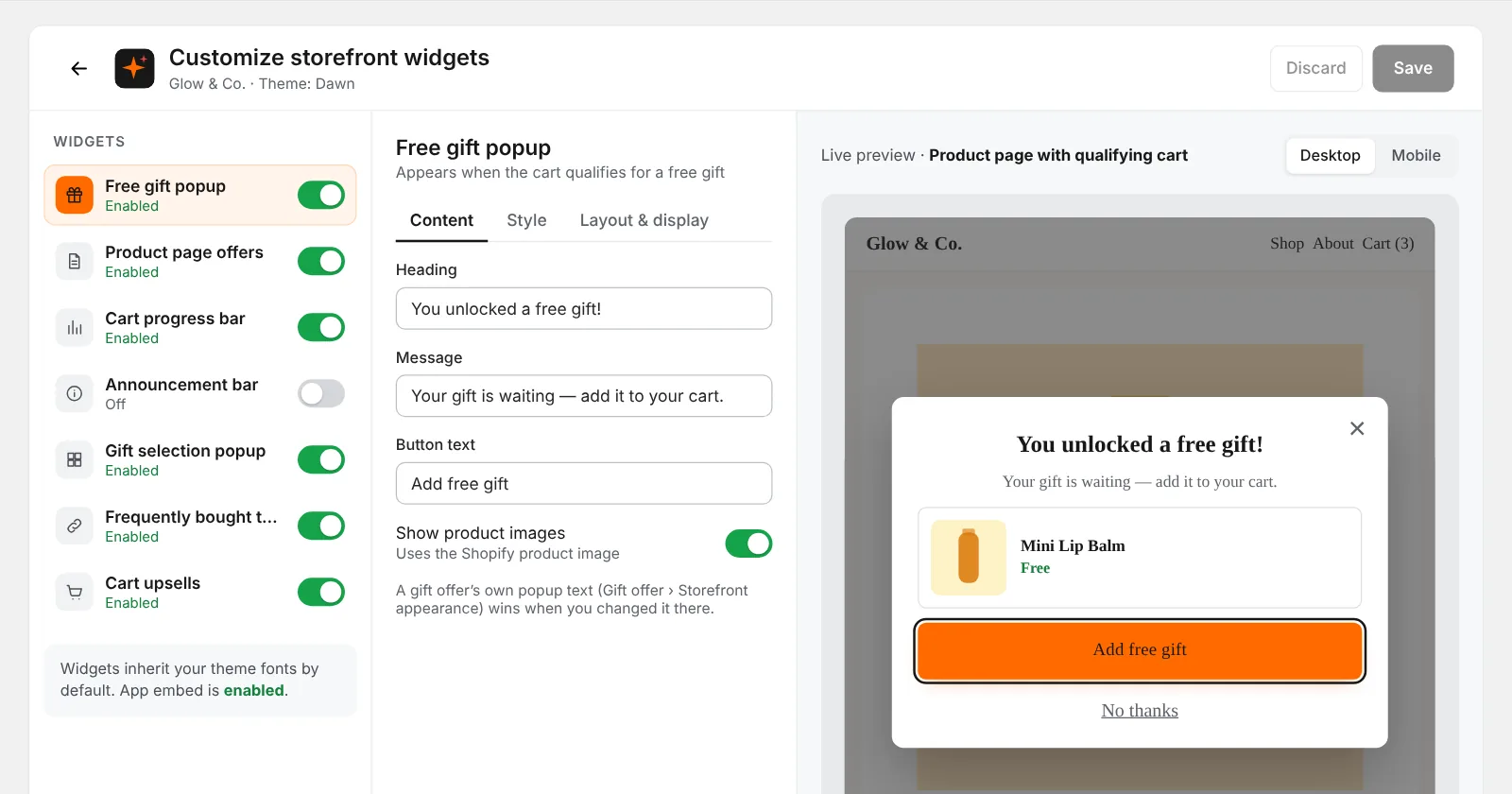
Open Customize. Turn each widget on or off — gift popup, product page offers, cart progress bar, announcement bar, gift selection, frequently bought together and cart upsells — set colours, corner radius and text, and check the live preview on desktop and mobile. Click Save to publish.
Choose cart and gift behaviour
Store-wide rules in Settings.
- Cart behavior: what happens after a customer adds a bundle, add-on or gift — Same as my theme (default: opens your cart drawer when your theme uses one), always open the drawer, stay on the page, or go to the cart page.
- Gifts: add and remove gifts automatically, hide out-of-stock gifts, and how the gift price is shown.
- Offer defaults: default status and priority for new offers, and your average order value without offers (used for “additional revenue”).
Track results
See what every promotion earns.
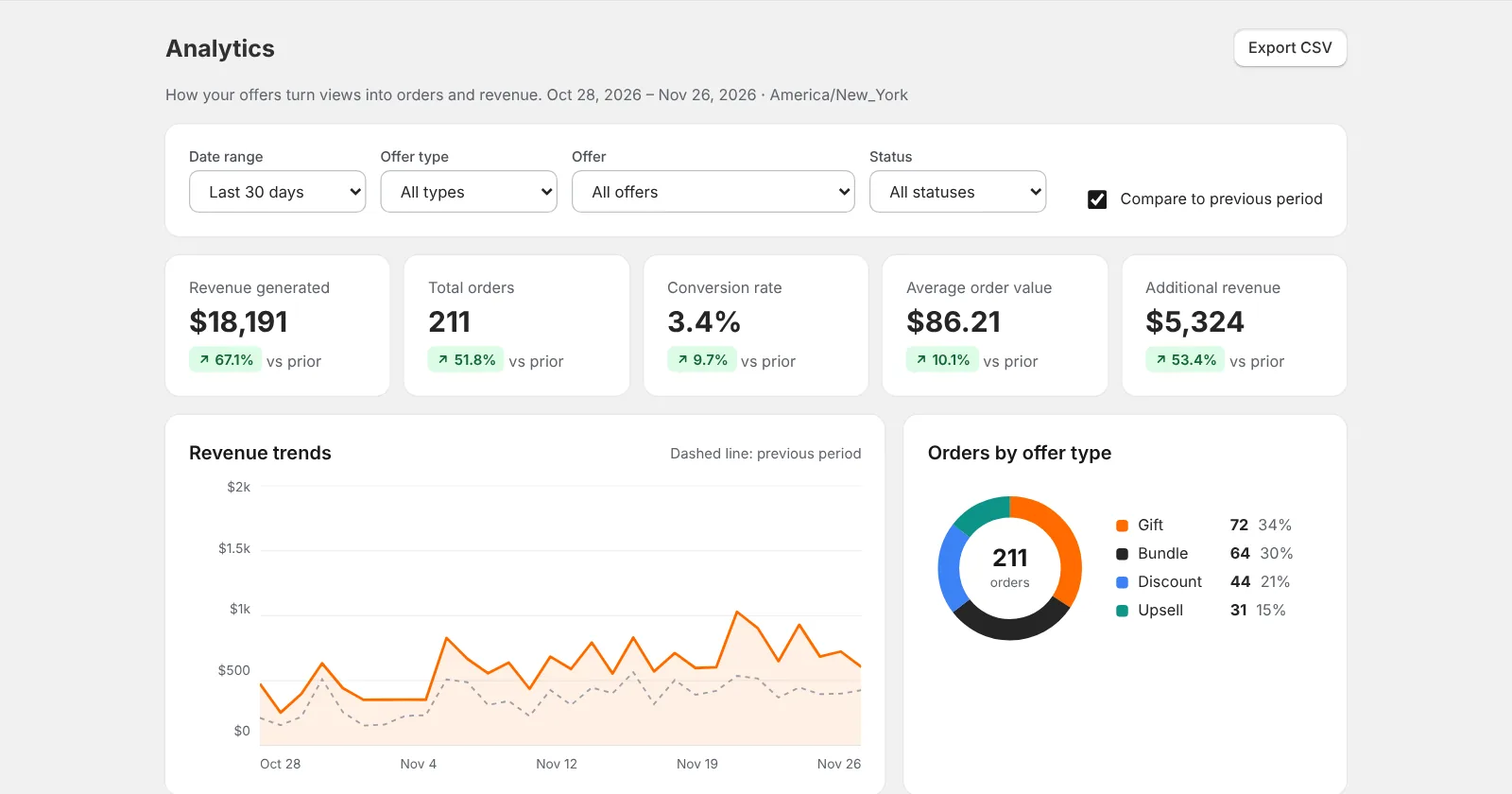
The Dashboard shows revenue, orders and average order value from offers, top offers and recent activity. Analytics (Pro) adds trends, the conversion funnel, orders by offer type and a per-offer table you can export to CSV.
Pick your plan
Free to start, Pro when you grow.
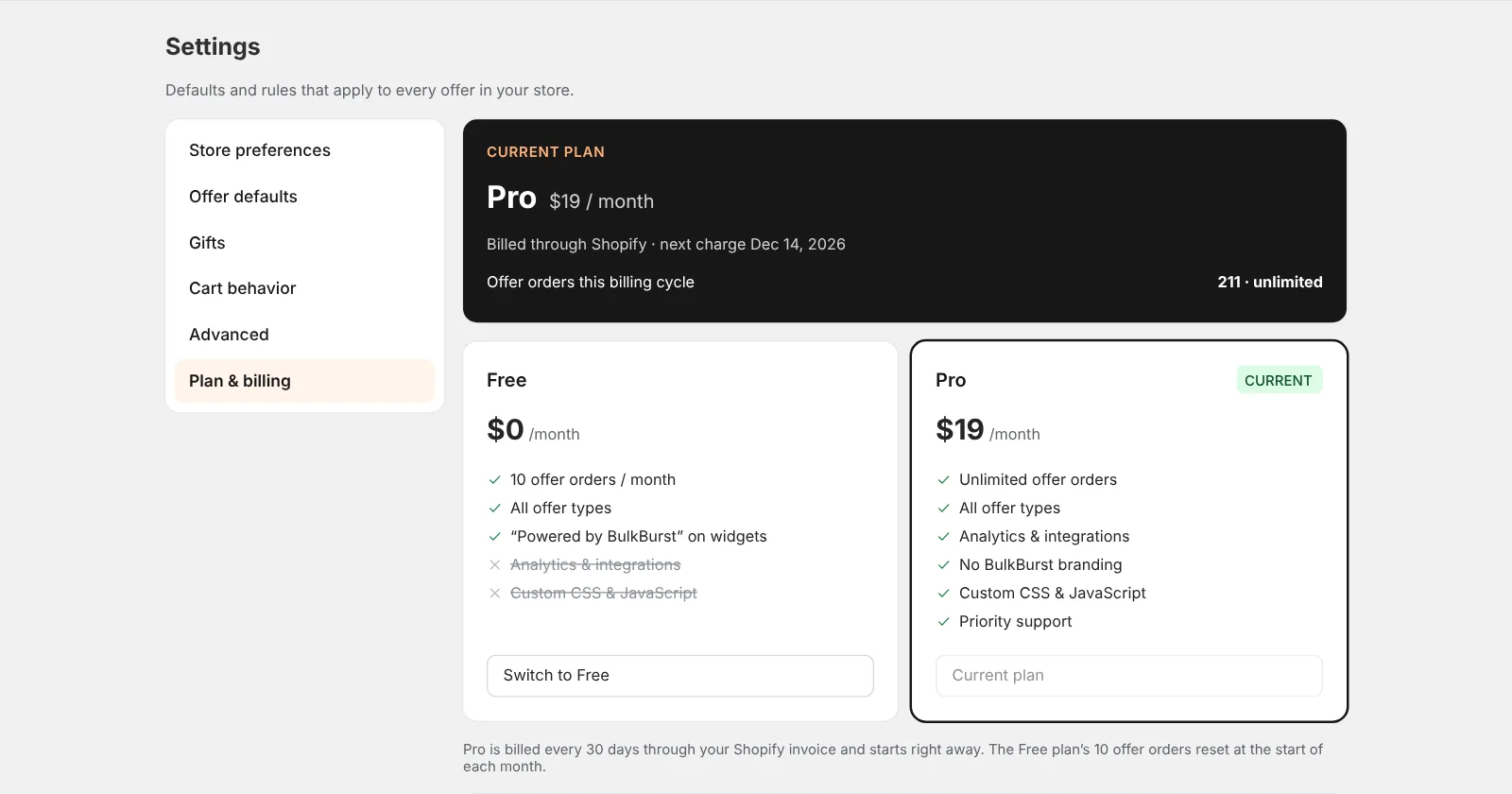
Start on Free (10 offer orders a month). Upgrade to Pro ($19/month) in Settings › Plan & billing for unlimited offer orders, Analytics, Integrations, no branding and custom code. Billing goes through your Shopify invoice. See the plans FAQ.
Troubleshooting
- Offer not showing? Check the app embed is on and saved, the offer is Active and within its dates, and the widget is on in Customize. Then click Republish offers on the Dashboard.
- Gift not added? The cart must reach the goal without the gift, the customer must match the offer’s eligibility, and the gift product must be in stock or not track quantity.
- Using a cart drawer app? Turn on Integrations › UpCart or Other cart drawer apps.
More answers in the FAQ, or email [email protected].